If you take payments as a health coach today, the money side probably lives in three places: a payment app, a spreadsheet of who bought what, and a mental note about whose package is running out. Grove folds all of that into one Billing page. You set your prices once, Stripe moves the money, and Grove keeps the count.
This guide walks the whole setup: connecting Stripe, building your pricing catalog of session types and packages, sending your first invoice, and reading the Payments tab afterward. By the end you can charge a client for anything you offer, with no client spreadsheet in sight. Clear, published pricing is also part of running an ethical practice; see how clear pricing supports NBHWC best practices below.
One thing this guide does not cover: letting clients book and pay themselves from your website. That flow has its own walkthrough in Add booking to your website, and it builds directly on the catalog you create here.
The terms you’ll see
| Term | What it means |
|---|---|
| Session type | A single bookable service with a name, duration, price, and description, like a Discovery call. What you list here is what clients see. |
| Package | Several sessions bought up front, always linked to a session type. Grove tracks the remaining count on its own. |
| Invoice | A one-off, coach-branded Stripe invoice for anything outside your usual packages. It goes out by email and can be paid without a Grove account. |
| Payments tab | The default view of the Billing page: money collected, money pending, recent payments, and every package balance. |
Before you start
- Have your prices decided, or at least a first draft. Everything here is editable later, and price changes update everywhere at once.
- You will create or connect a Stripe account during setup. Have on hand: your date of birth and home address, the bank account where payouts should land (routing and account number in the US, sort code and account number in the UK), and your company registration number if you operate as a limited company. If you already use Stripe, sign in with that login; Grove still creates a fresh account just for your Grove payments, which keeps things tidy. Stripe’s own help center covers the onboarding questions that come up most in its Connect FAQs.
- Stripe verifies your details in the background after you finish, usually within a day. Connect a day or two before you plan to send your first invoice so the review never blocks you.
- A client on your roster makes the invoice step more realistic, but you can also invoice someone who isn’t in Grove yet. Invite and onboard your first client covers adding one.
- The whole setup takes about twenty minutes, most of it inside Stripe’s onboarding.
Steps
-
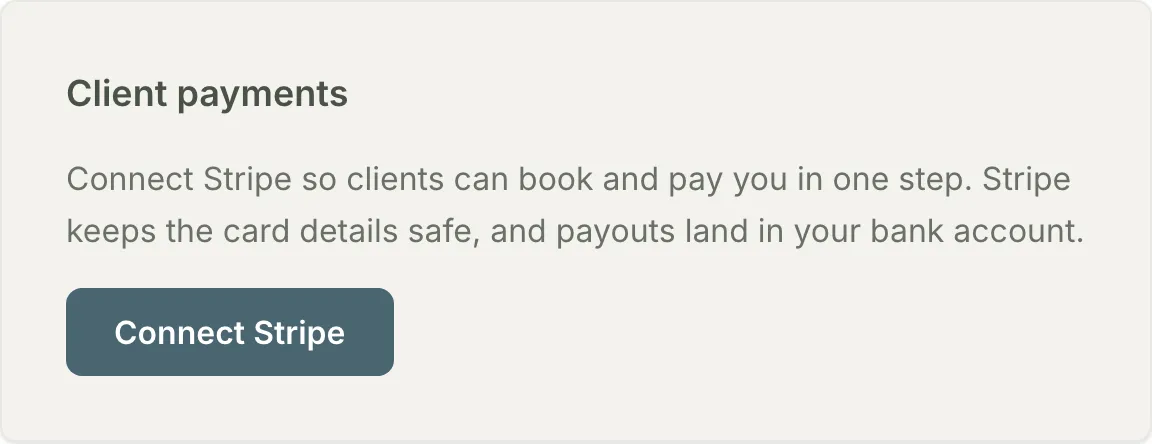
Connect Stripe from Settings. Open Settings and find the Client payments card. It explains the deal plainly: connect Stripe so clients can book and pay you in one step, Stripe keeps the card details safe, and payouts land in your bank account. Below that, the card asks for your country before you connect. Pick where your business is based: it sets the currency your clients pay in, and it cannot be changed after the account is created. Click Connect Stripe. Grove hands you to Stripe’s own onboarding, where you confirm your business details and the bank account payouts should reach. When you finish, Stripe returns you to Settings and the card shows a Connected badge with your Stripe account email.
Heads up: Right after connecting, the card may read Payouts pending review with Stripe instead of Payouts enabled. That’s Stripe reviewing your details, not a Grove error. It clears on its own.
-
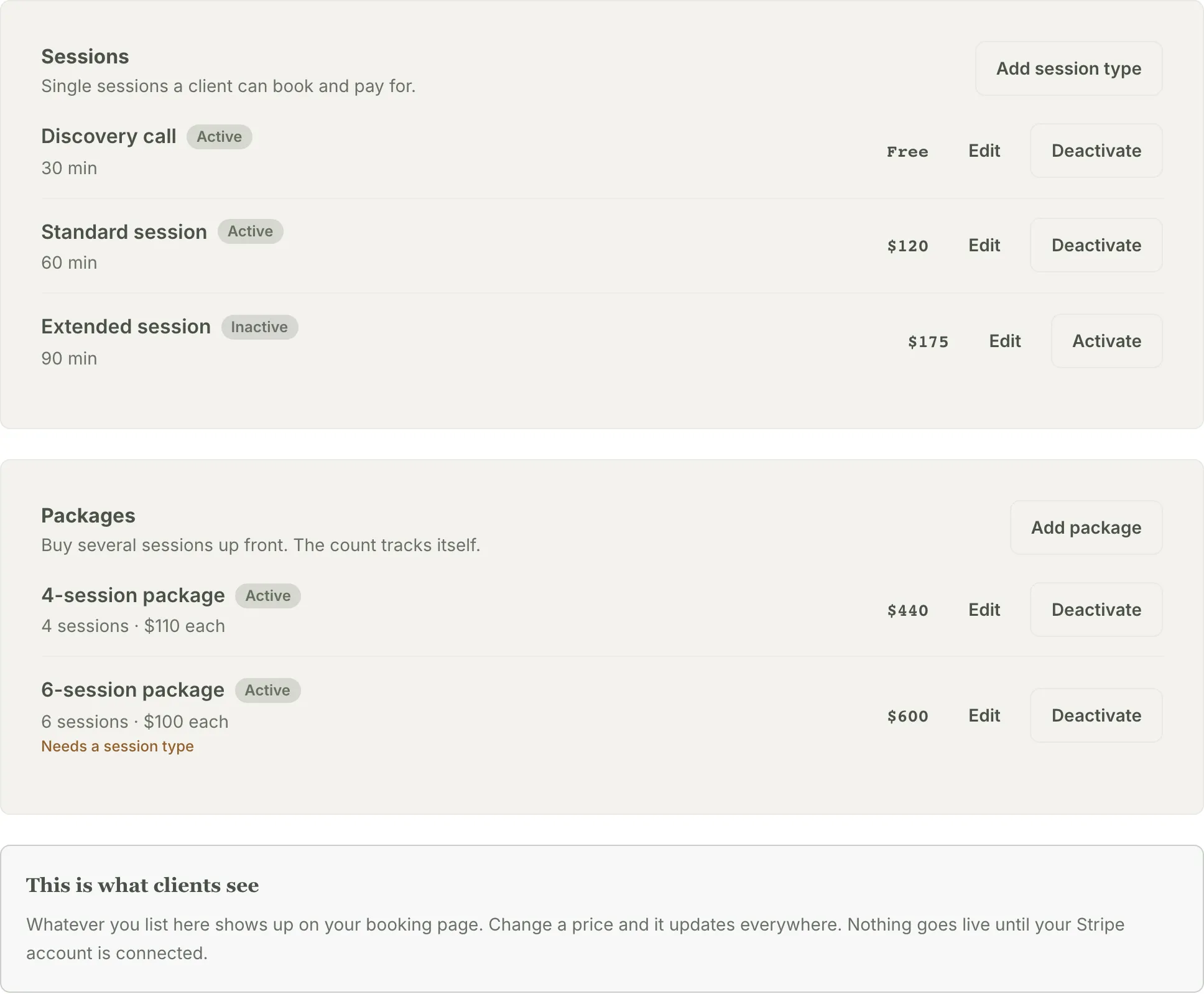
Open Billing and switch to the Pricing tab. Click Billing in the sidebar. The page opens on the Payments tab (empty for now) with a Pricing tab beside it. Switch to Pricing. A note at the top called This is what clients see makes the promise explicit: whatever you list here shows up on your booking page, a price change updates everywhere, and nothing goes live until your Stripe account is connected.
-
Add your first session type. In the Sessions card, click Add session type. Give it a Name (the placeholder suggests Discovery call), a Duration, a Price, and a Description, which is shown to clients on your public booking page. Below that, How to prepare takes a short note in your voice that clients see right after booking and in their confirmation email. Click Save and the session type appears in the Sessions card marked Active.
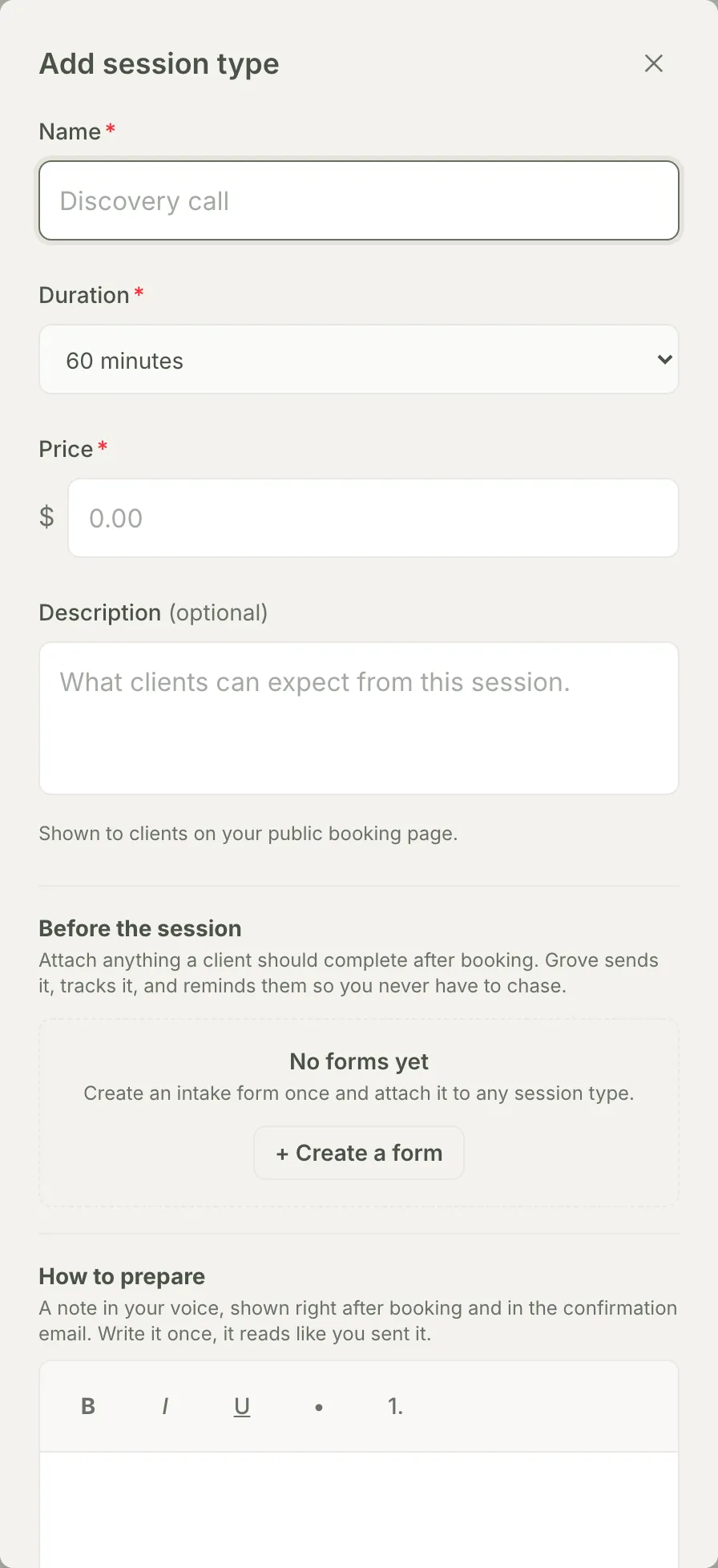
Tip: A price of 0 lists as Free rather than $0.00, and clients book it without entering a card. A free intro consult is a natural first session type.
-
Attach an intake form, if you use one. Inside the same session type editor, the Before the session section attaches anything a client should complete after booking. Pick a form under Intake form, then set Ask clients to finish by to 24 hours before, 48 hours before, or any time before the session. Grove sends it, tracks it, and nudges the client once by email if the deadline gets close. If you haven’t built a form yet, Set up intake forms covers it.
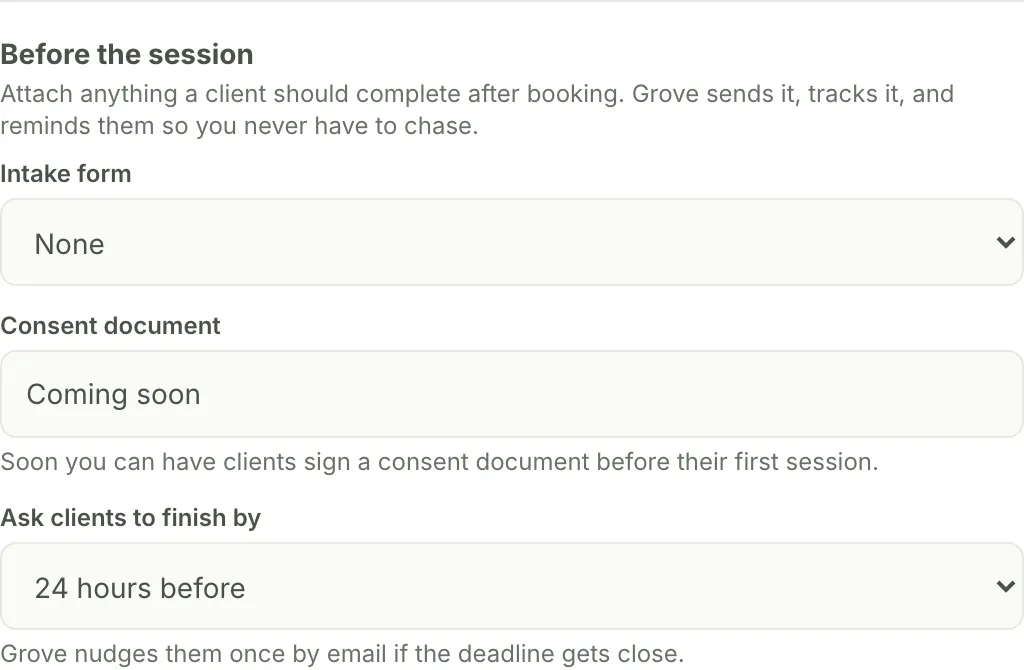
Heads up: The Consent document slot in this section reads Coming soon. Having clients sign a consent document before their first session is on its way; until then, intake forms are the piece that’s live.
-
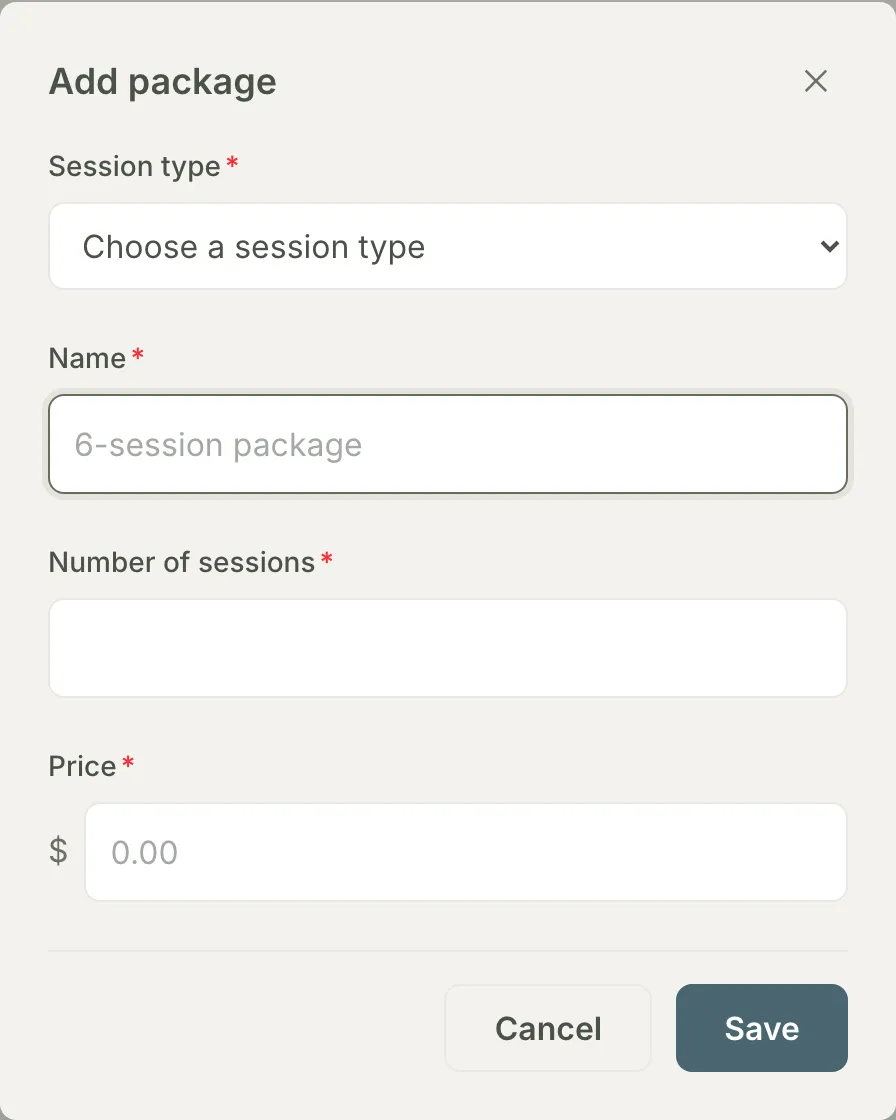
Add a package. In the Packages card, click Add package. Choose which Session type it contains, name it (the placeholder suggests 6-session package), then set the Number of sessions and the Price. The session type link matters: your booking page uses its title, description, and duration to present the package, and Grove counts sessions against it as they’re booked.
-
Send your first invoice. Switch to the Payments tab and find the Invoices panel, for one-off, coach-branded Stripe invoices outside your usual packages. Click New invoice. Bill an existing client, or click + New recipient and enter a name and email for someone who isn’t in Grove. Picking a Session type fills in the line item for you, or write your own and set the Amount. Click Send invoice and Grove confirms with Invoice sent, plus a hosted payment link you can open or copy. The Recent invoices list tracks each one from Awaiting payment to Paid.
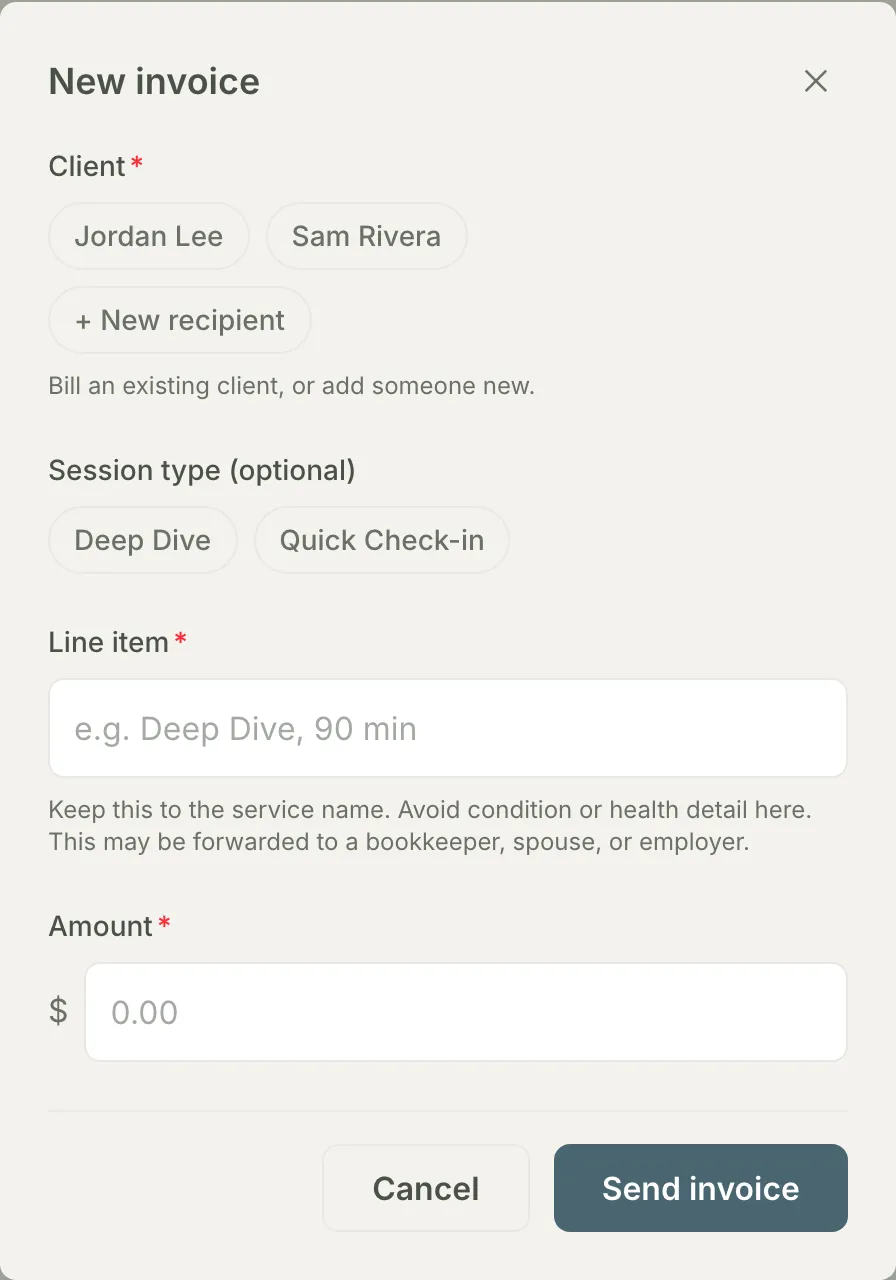
Gotcha: Keep the line item to the service name, like Deep Dive, 90 min. An invoice can end up forwarded to a bookkeeper, spouse, or employer, so health details don’t belong on it. The composer reminds you of this right under the field.
-
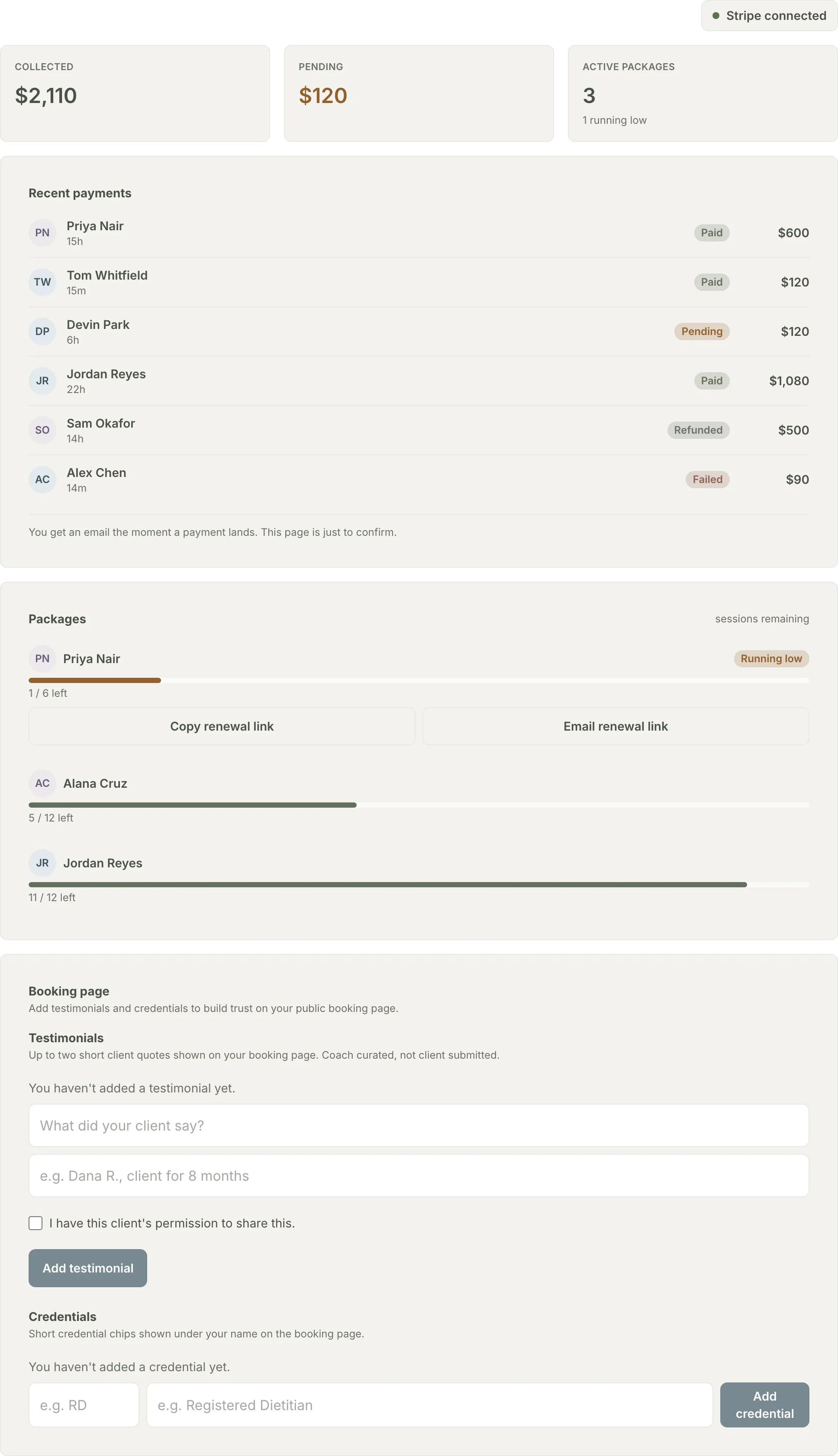
Read the Payments tab. Once money moves, the top of the tab holds three numbers: Collected, Pending, and Active packages. Below them, Recent payments lists each payment with its client and a status of Paid, Pending, Refunded, or Failed. The Packages rail shows every client’s balance as a count like 2 / 6 left. When one runs low, a Running low badge appears with two one-click follow-ups: Copy renewal link or Email renewal link, either of which continues the package right where it left off. And you don’t need to watch this page: Grove emails you the moment a payment lands. This page is just to confirm.
How clear pricing and payment supports NBHWC best practices
Money is one of the easiest places for a coaching relationship to get murky, which is why professional standards treat business practices as an ethics topic. The NBHWC Content Outline’s Domain 4, Ethics and Professional Practice, is where those expectations live, and this setup supports several of them in practice:
- Published, consistent pricing supports transparent professional agreements: every client sees the same session types, durations, and prices on your booking page, set before anyone commits.
- Service-name-only invoices support confidentiality in billing. The invoice composer nudges you to keep health detail off a document that may be forwarded to a bookkeeper, spouse, or employer.
- Automatic package counts support clear agreements over time: the client’s remaining balance is tracked by the system, not by memory, so nobody is surprised at session seven.
None of this replaces your judgment about fair pricing or scope of practice. It just makes the administrative side match the standard you already hold.
What’s next
Your catalog exists and you can charge for anything on it. The natural next step is letting clients do the buying themselves: your booking page presents every active session type and package, and Add booking to your website walks through putting a Book a session button on your Squarespace, Wix, or WordPress site.
Until then, two guides deepen what you just built: Set up intake forms makes every booking arrive with the context you need, and Show up prepared for sessions is where that context pays off.