Switching coaching software usually means one dreaded task before anything else: re-typing a roster you already have somewhere else. Grove’s CSV import skips that. Export your client list from your old system, upload it, match a few columns, and your whole roster lands in Grove as prepared Drafts, ready for the same client check-ins rhythm every other Grove client gets, without you adding people one at a time.
This guide walks the whole import: opening the wizard from the Clients page, uploading your file, mapping its columns to Grove’s fields, checking the warnings Grove flags before anything is created, and reading the results once it’s done. CSV import is intentionally narrow: it brings basic contact info only, so a coach can trust exactly what it does and doesn’t touch. That scope is also good ethical practice on its own; see how CSV import supports NBHWC best practices below.
If you’re starting from zero instead of migrating a roster, Invite and onboard your first client is the guide for adding clients one at a time. This one picks up right where that one’s own CSV import tip points, and ends in the same place: a Draft ready for you to prepare and invite.
The terms you’ll see
| Term | What it means |
|---|---|
| Draft | The status every imported client starts in. Nothing has been sent to them yet; they’re only visible to you. |
| Auto-suggested match | Grove’s best guess at which of your CSV’s columns maps to which Grove field, shown as a badge next to each column: exact match, suggested, or no match. |
| Skip this column | The choice to leave a CSV column out of the import entirely, for data Grove has nowhere to put. |
| Preview warning | A flag Grove shows before import for a row missing a required field or sharing an email with another row in the same file. Rows with a warning are left out of that import run. |
| Failure report | A downloadable CSV listing every skipped row and why, so you can fix your source file and re-import just those clients. |
Before you start
- Export your roster from your old system as a CSV. Every row needs at least a first name and an email; those are the only two required columns.
- Have the file ready as a plain
.csv, under 5MB. Grove rejects other file types and oversized files at upload. - Decide what you’re doing about health and wellness data from your old system. CSV import only carries contact info, so that data still needs an intake form; see the data-routing rule below before you start.
- Budget about ten minutes, more if your file is large or needs column cleanup.
Steps
-
Open the import wizard. On the Clients page, click Import Clients, the button next to Add Client. That takes you to the CSV import wizard, a four-step flow: Upload, Map Columns, Preview, and Import.
-
Upload your CSV. On the Upload CSV step, drag your file onto the dropzone or click Browse Files. Grove parses it immediately and shows how many columns and rows it found, then click Continue.

Tip: Export from your old system as CSV. The only required columns are First Name and Email; everything else is optional.
Heads up: Grove only accepts
.csvfiles up to 5MB. A different file type or an oversized file is rejected right at upload, before anything is parsed. -
Map your columns. On Map Columns, Grove has already matched what it can: an exact-match badge means the column name matched a Grove field precisely, suggested means a close guess, and no match means it found nothing close and auto-skips that column. Each row shows a sample of that column’s data and a dropdown to change the match yourself, to any of Grove’s contact fields (Full Name, First Name, Last Name, Email, Phone Number, or Timezone) or to Skip this column. Map a single “Full Name” column and Grove tells you how it’ll split it into first and last name before you commit.

Gotcha: CSV import only fills contact fields on the client record; a banner on this step says so plainly. Health and wellness data, medications, goals, anything from an intake conversation, still needs an intake form. See how CSV import works with intake fields.
Heads up: If the health data you’re bringing over came from your old system rather than Grove’s own intake form, you’re the one responsible for having that client’s consent to store it, the same as entering any client’s data yourself. See who’s responsible for consent.
-
Preview and check the warnings. Click Preview Import once every column is mapped or skipped. The Preview step shows how many clients are ready to create and how many warnings Grove found, plus a table of every row with its own warning icon where one applies. A row is flagged for a missing First Name or Email, or for sharing an email with an earlier row in the same file; flagged rows are left out of this import run rather than blocking the rest.
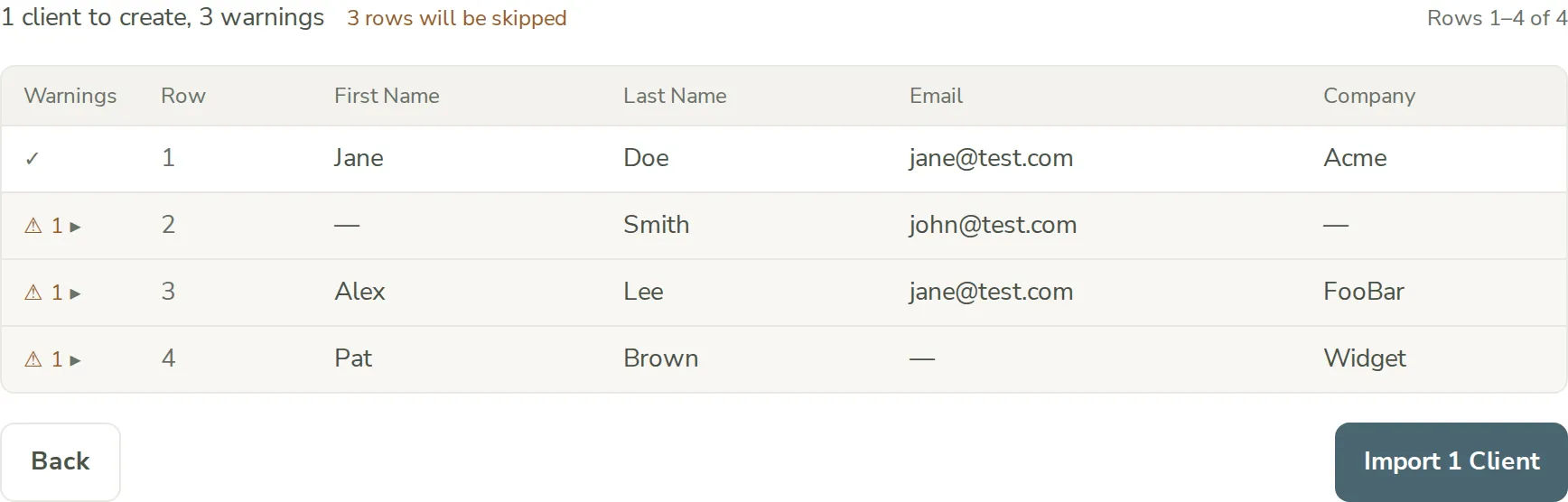
Gotcha: a duplicate email only checks against other rows in the same CSV, not against clients already in your roster. Two coaches’ worth of care still goes a long way here: skim the file for anyone you may have already added by hand.
-
Import your clients and read the results. Click Import N Clients, where N is the count of rows without warnings. Grove creates each one and lands you on the Import Complete results, showing how many clients were imported and, if any rows were skipped, a toggle listing each skipped row and why.
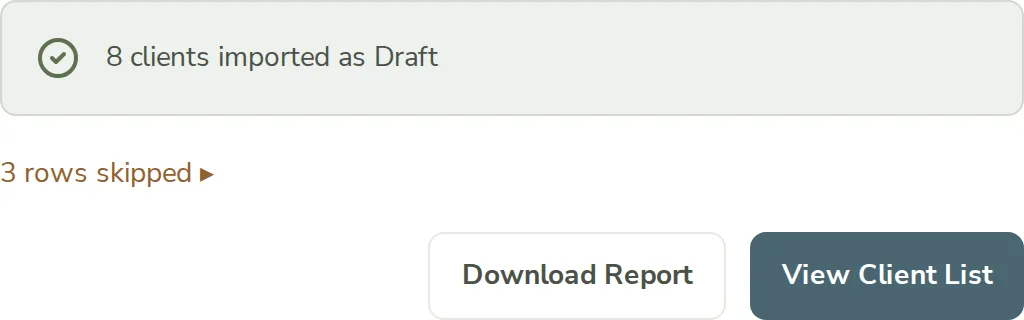
Gotcha: every imported client lands as Draft. Nothing is emailed to anyone yet, no matter how many rows you just imported; that only happens when you send each one’s invite yourself. See why new clients don’t show up on your dashboard yet.
-
Download the failure report if any rows were skipped. Click Download Report for a CSV listing the row number, status, and reason for every skipped row, plus your total imported and skipped counts. Fix those rows in your source file and re-run the import for just that handful; nothing about the rows that already succeeded is touched.
-
Click View Client List, then prepare each Draft. This returns you to the Clients page, where your imported roster now lives in Draft status. From here, follow Invite and onboard your first client starting at its “prepare their space” step for each one: add goals and habits, collect the health data an intake form covers, and send the invite whenever you’re ready for that specific client to hear from Grove.
How CSV import supports NBHWC best practices
Bulk-importing a roster is mostly plumbing, but the two choices behind how Grove does it map onto real competencies in the NBHWC Content Outline (2026-2030):
- Ethics and professional practice (Domain 4): consent stays on you. CSV import itself never asks about consent, because it never touches health data. The moment you go on to enter that history yourself through an intake form, the same attestation gate applies as any other manually entered data: you’re vouching that you have your client’s permission, not the file you exported.
- Ethics and professional practice (Domain 4): scope stays narrow on purpose. The column mapper only ever offers contact fields as targets, never intake or health fields. That’s a deliberate boundary, not a missing feature, so a bulk operation can’t accidentally carry sensitive data further than a coach meant it to.
None of this replaces the conversation you’ll still have with each client about what you brought over and why. It just keeps the import itself honest about what it does and doesn’t do.
What’s next
Every imported client is a Draft with nothing sent yet, exactly like a client you added by hand. Follow Invite and onboard your first client to prepare each one’s space and send their invite when you’re ready, and Set up intake forms (and put the answers to work) to collect the health and wellness half of their history that CSV import intentionally leaves out.