An AI assistant for health coaches is only worth turning on if you know exactly what it’s allowed to touch, and Grove is built so that decision never gets made for you. Sage, Grove’s assistant coach, drafts a morning read on every client who has agreed to be read and prepares your talking points before each session, but nothing about it starts moving until two separate people say yes: you, for your practice, and each client, for themselves.
This guide walks that dual-consent setup end to end: the three-beat Meet Sage walkthrough where you decide for your practice, the read-only preview that shows you exactly what a client will see before you ever mention it to them, the consent sheet your client works through on their own, and what changes once Sage’s output starts arriving, the Authored by Sage badge and the monthly usage indicator. If you’re brand new to Grove, your own guided setup may already have turned Sage on for your practice while you were getting set up and coaching yourself first; this guide covers what that switch means and how to extend the same consent to a real client. And if you want the reasoning behind setting it up this way, how turning on Sage safely supports NBHWC best practices at the end maps the whole flow to the field’s own ethics standard for bringing AI into a coaching practice.
The terms you’ll see
Grove uses a small, consistent vocabulary across the consent flow and Sage’s output. Here’s the map:
| Term | What it means |
|---|---|
| Meet Sage | The three-beat guided walkthrough at /meet-sage where you decide, for your whole practice, whether to bring Sage’s AI assistance in. |
| Coach Assist | The Settings section where practice-wide Sage consent and usage controls live, including Pause Coach Assist. |
| Daily Pulse | Sage’s short daily read on a client’s recent check-ins, marked with the Authored by Sage badge. |
| Talking Points | Sage’s draft agenda material for an upcoming session, built from a client’s recent activity and also marked Authored by Sage. |
| Authored by Sage badge | The marker on every Sage-drafted Daily Pulse and set of Talking Points, paired with a reminder that AI can be wrong and should be reviewed before you rely on it. |
| Monthly usage | The share of your plan’s shared AI budget used so far. At 100% (“Monthly budget reached”), already-generated drafts stay visible, but new generation pauses until reset or upgrade. |
Before you start
- You’ll need a Grove account with at least one client invited or active. Sage has nothing to draft until a client exists to check in.
- Go to Settings, then find the Coach Assist section. That’s where practice-wide AI consent lives, alongside the link into the guided Meet Sage walkthrough this guide follows.
- Budget about two minutes for your own decision, plus however long it takes your client to open their app and decide theirs. The two consents don’t have to happen back to back.
- Nothing here is reversible-by-force: either side can turn Sage off again at any time, and nothing already said between you and a client is affected either way.
Steps
-
Open Meet Sage from Settings. On the Settings page, in the Coach Assist section, click Meet Sage. Grove opens a three-beat walkthrough at
/meet-sageinstead of a plain toggle, so you see what you’re agreeing to before you agree to it. The same walkthrough is reachable from a Meet Sage invitation card on Grove Home if you haven’t visited Settings yet.Heads up: if you’re working through this soon after creating your account, check first: guided setup’s own Meet Sage step may have already turned this on for your practice while you were coaching yourself. This walkthrough simply reflects that state back to you instead of re-asking. See Get set up and coach yourself first.
-
Read what Sage does, in beat one. The first screen, Meet Sage, lays out three capabilities side by side: Daily Pulse (a short read on each client after every check-in), Talking Points (session prep drafted from a client’s recent story), and the reminder that you stay the coach, Sage drafts and you decide. Click Continue.
-
See exactly what Sage reads, in beat two. The second screen, titled Sage only reads what clients agree to share, lists what Sage reads (check-ins and reflections, goals and habits, session notes you choose to share) against what Sage never touches (client messages, contacting a client directly, any client who hasn’t said yes) and closes with a plain caveat: Sage is AI, and AI can be wrong, so everything it drafts is marked and yours to judge. Click Continue.
-
Decide for your practice, in beat three. The final screen asks Bring Sage into your practice? and gives you two buttons: Enable Sage or Not now. Choosing Enable Sage turns AI consent on for your whole practice at once, not per client; choosing Not now changes nothing; you can return to this walkthrough from Grove Home any time.
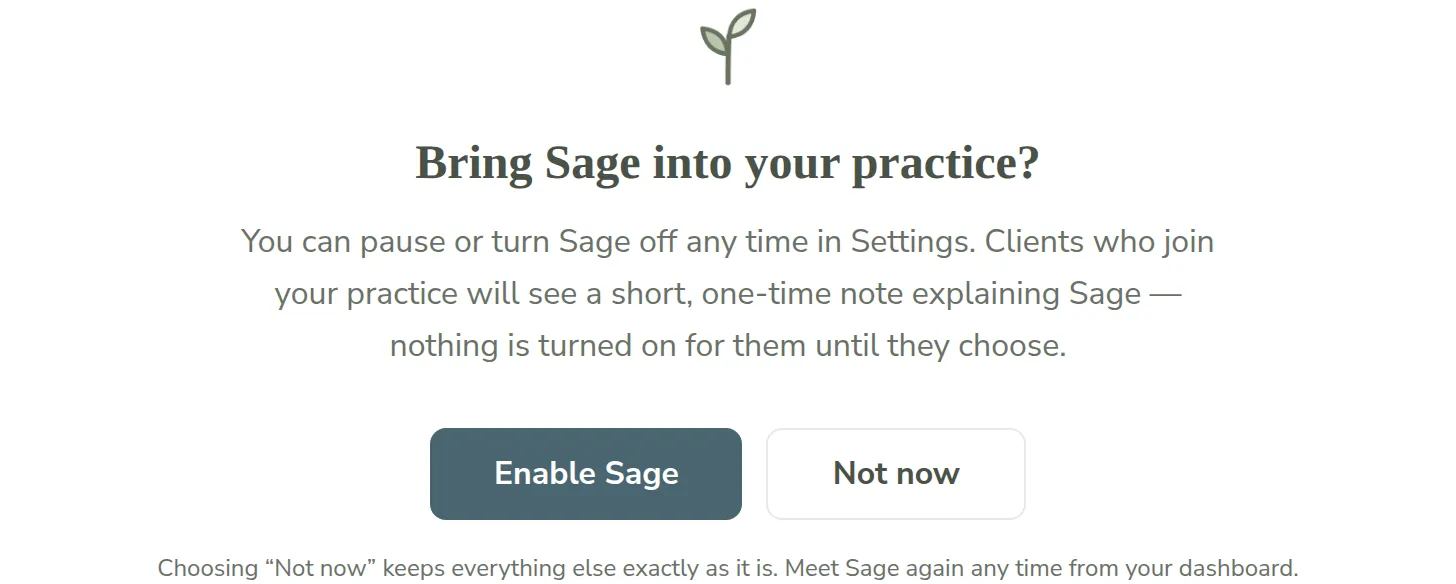
Gotcha: this is a practice-wide switch, not a per-client one. You cannot enable Sage for one client and leave it off for another from your side; the client side, covered below, is where the per-client decision actually lives. See can I turn Sage on for a client, or turn it off for just one client?
-
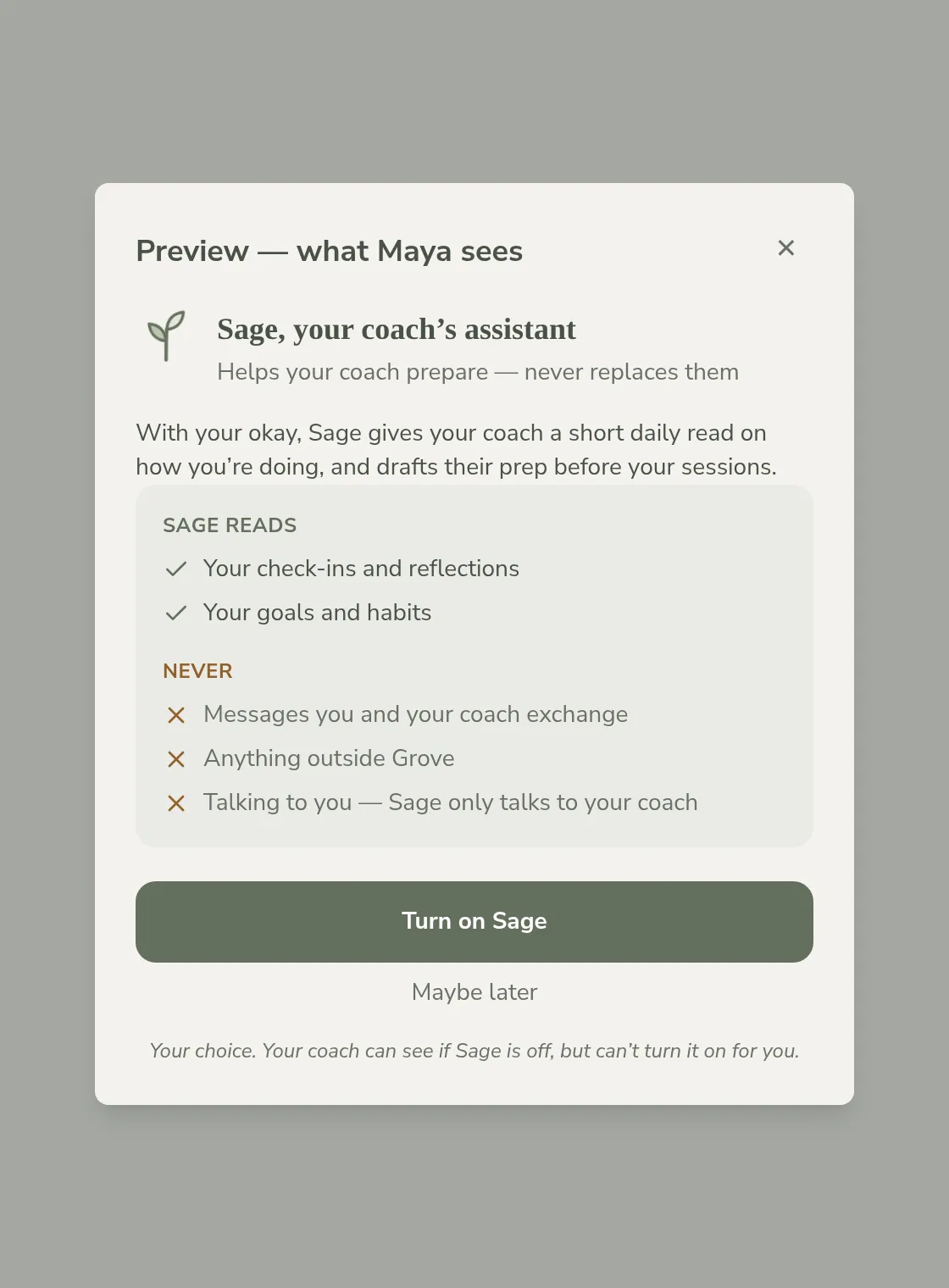
Preview what a specific client will see before you mention it. Wherever Grove shows you a client whose Sage isn’t on yet (a Daily Pulse card’s quiet not-enabled state, for example), click Preview (worded Preview what [client] sees on the Pulse card). This opens a read-only modal titled Preview, what [client] sees: the same Sage reads and Never lists your client will get, plus their own Turn on Sage and Maybe later buttons, shown inert. There’s no send or remind action here; it’s understanding only, so you know what you’re about to ask before you ask it.
-
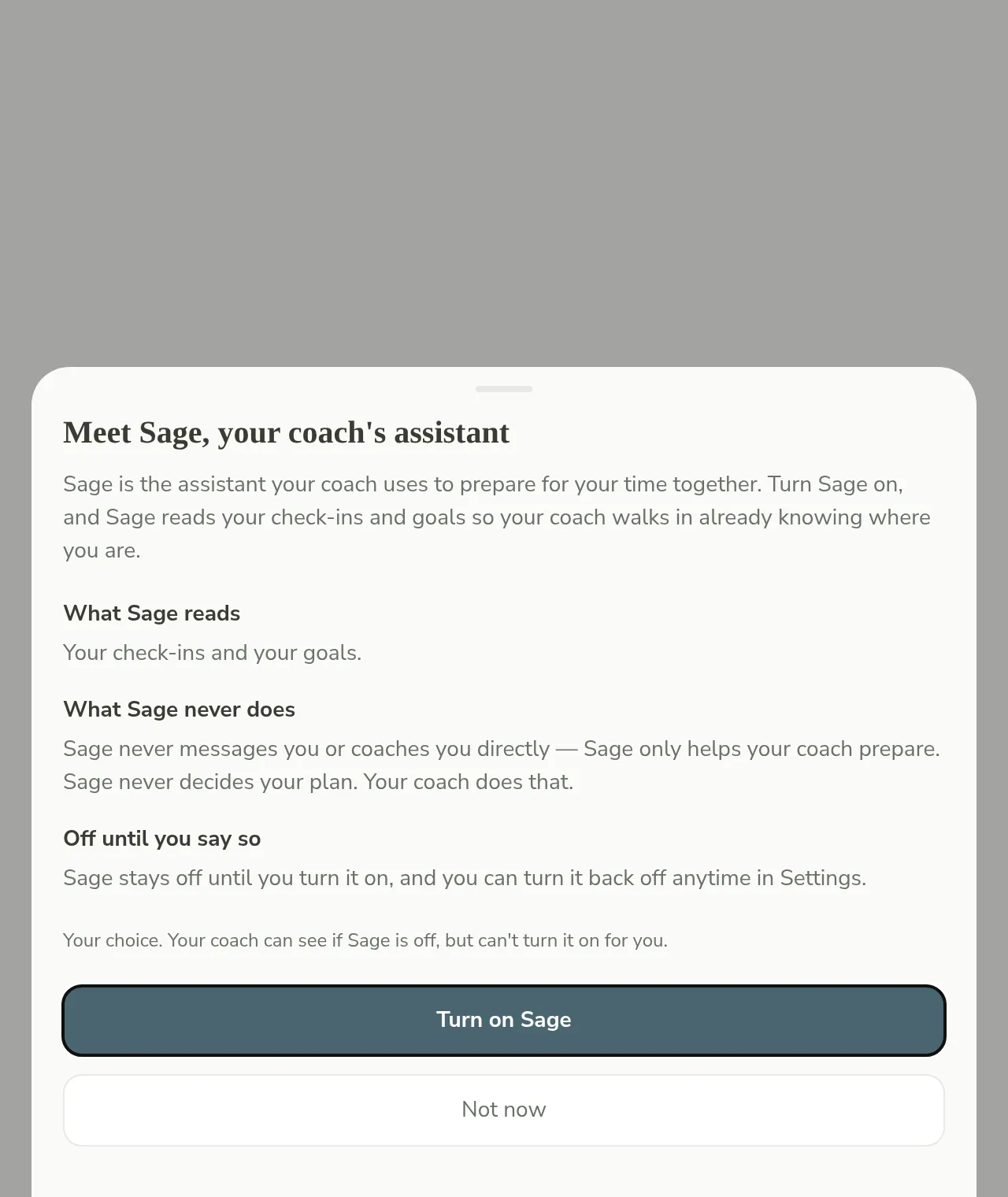
Let your client decide in their own app. Nothing changes for a client until they open their own Grove app and work through their own consent sheet, titled Meet Sage, your coach’s assistant. It repeats the same shape in their voice: What Sage reads (their check-ins and goals), What Sage never does (message them directly, decide their plan), and Off until you say so, then ends with Turn on Sage or Not now. Their footnote states the second non-negotiable plainly: their choice, and you can see whether Sage is off but you can’t turn it on for them.
Heads up: this is a different consent than the one you may already handle when you enter a client’s intake yourself. That attestation covers your responsibility for data you type in on a client’s behalf; Sage’s consent is the client’s own decision about AI, made in their own app, and Grove never merges the two. See when I enter data on behalf of a client, who’s responsible for consent?
-
Check a client’s status from their profile, without being able to change it. Once you’ve asked, a small pill on the client’s profile reads Sage on or Sage off, so you always know where things stand without pinging them to ask. Hover it for the full description. This pill is read-only by design: only the client can flip their own switch, from their own app.
-
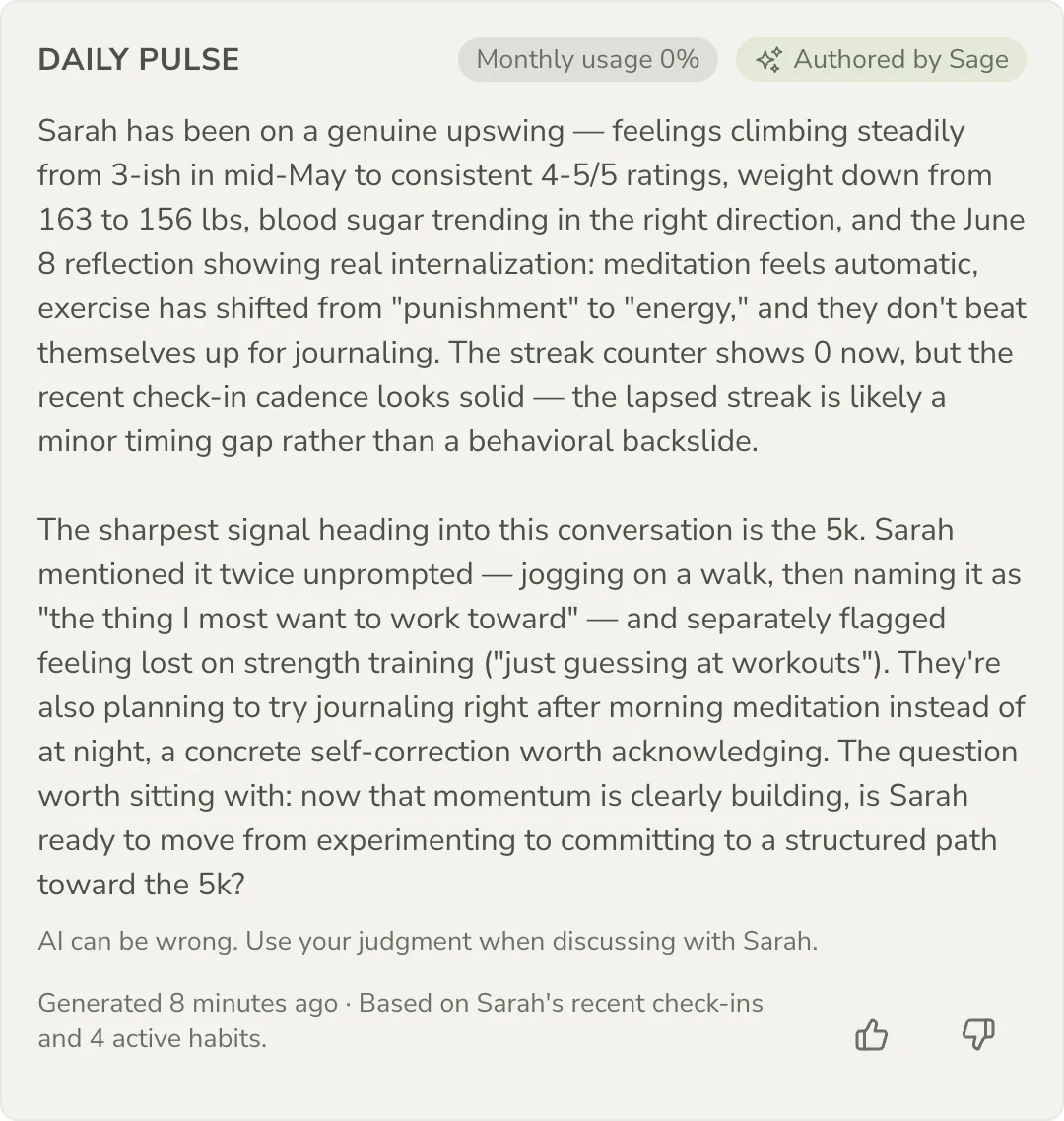
Recognize Sage’s work once it starts arriving. Every Daily Pulse card and set of Talking Points that Sage drafts carries an Authored by Sage badge, a small marker so you never mistake AI-drafted material for your own notes, paired with the reminder that AI can be wrong and you should use your judgment discussing it with your client.
-
Watch your monthly usage as you lean on Sage. A small Monthly usage N% pill sits near Sage’s output and tracks your plan’s shared AI budget across every client. At the limit it reads Monthly budget reached: every Pulse and Talking Points draft already generated stays exactly where it is, but new generation pauses until your budget resets next month or you upgrade.
Tip: the usage pill is clickable and opens a quick upgrade prompt, so hitting the limit mid-week doesn’t mean guessing where to go next.
-
Turn it off again whenever either of you needs to. From your side, Pause Coach Assist in the Coach Assist settings section blocks AI use for every client in your practice immediately, even if practice opt-in stays on, useful when you want the switch flipped off fast without unwinding each client’s own choice. From a client’s side, they turn their own toggle off in their app whenever they want. Either move is instant and neither one asks the other’s permission.
How turning on Sage safely supports NBHWC best practices
Bringing AI into a coaching practice is a professional-ethics decision as much as a product one, and the NBHWC Content Outline (2026-2030) treats it that way under Domain 4, Ethics and Professional Practice. The dual-consent setup in this guide is built around that standard.
-
AI supports the coach; it does not replace the relationship (Domain 4). Sage drafts your Daily Pulse and Talking Points, and every draft carries the Authored by Sage badge with a reminder that AI can be wrong. Nothing Sage writes reaches a client except through you, and you decide what to do with it.
-
Informed consent governs what AI can see (Domain 4). Practice-wide opt-in and each client’s own opt-in are separate, explicit choices, never a default. The read-only Preview shows you exactly what a client will be asked to agree to before you ever raise it with them, and either side can revoke consent at any time, Pause Coach Assist on yours, their own toggle on theirs.
-
Scope and limits stay visible in the moment they matter (Domain 4). The Sage reads / Never lists in both the Meet Sage walkthrough and the client’s own consent sheet name exactly what AI is permitted to touch, and the Monthly usage indicator keeps the AI budget itself visible rather than a surprise limit.
None of this makes Sage the coach. It keeps AI in the supporting, consented, visibly-bounded role the field’s own ethics standard describes, while you hold the relationship.
What’s next
Once a client has said yes, their check-ins start feeding a Daily Pulse the moment they log one, and their Talking Points are ready the next time you open their session. See Show up prepared: session prep with Sage for the full ritual: reading the Pulse each morning, building an agenda from Sage’s suggested moves, and locking in the plan. For the fuller policy on consent, data handling, and what Grove does and doesn’t share with an AI provider, see the Sage FAQ and Grove’s legal terms and privacy policy.